
User Guide
VG Bassoon
A complete reference for all interface controls, effects, presets, and installation.
Interface Overview
VG Bassoon offers three control modes — Keyboard, Wind, and Breath — each optimized for different performance setups. Click any image to enlarge.
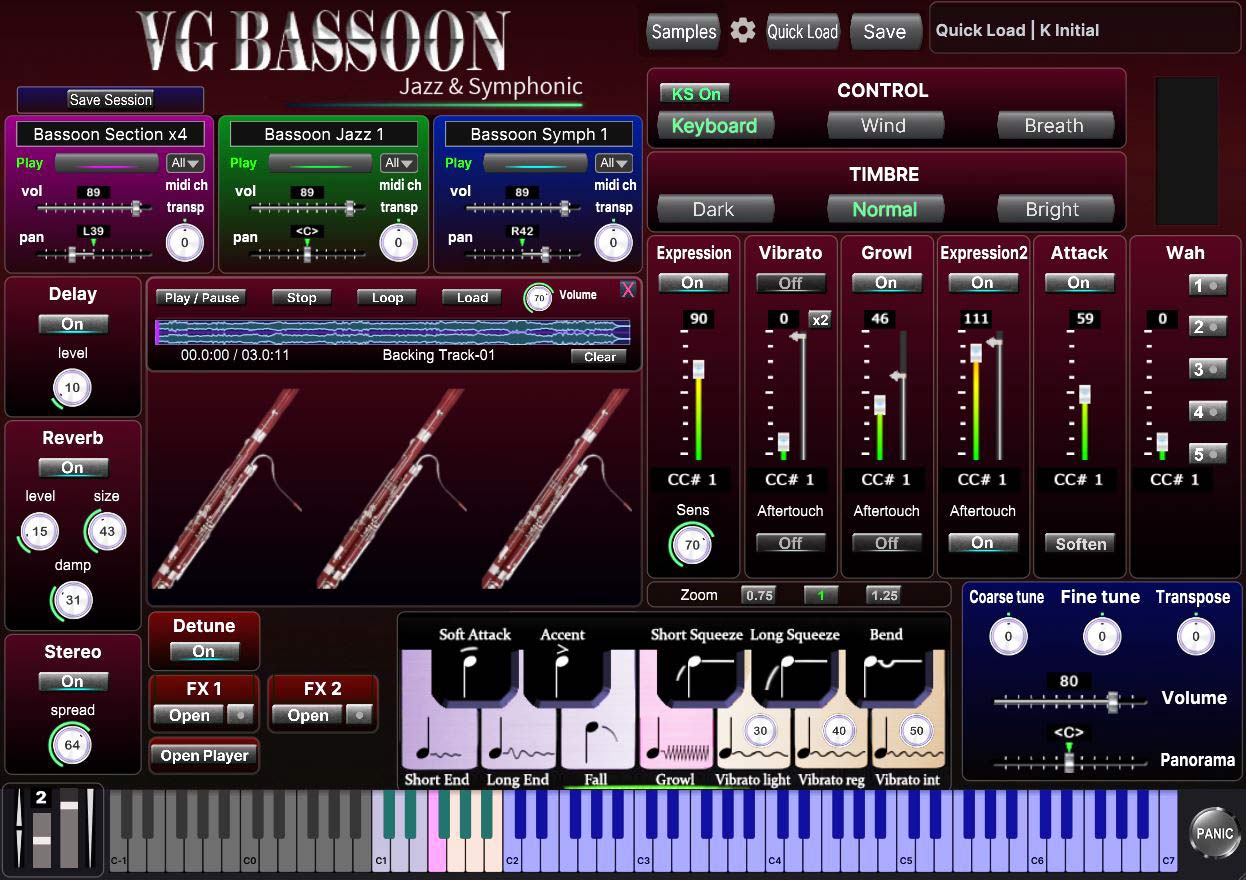
Keyboard mode
VG Bassoon is a virtual instrument dedicated entirely to one instrument, the bassoon, built on the complete VG performance engine. It delivers the same expressive behaviour whether you are playing with a MIDI keyboard, a wind controller, or a breath controller.
Three bassoon sound sets are included, and all three are available at once across the three instrument layers.
Bassoon Jazz 1 has a brighter, more focused tone with a sharper, better defined attack. The reed comes through clearly and every note start lands, which is what a jazz line needs to be heard over a rhythm section.
Bassoon Symph 1 has a warmer, rounder tone with a soft attack. It works as a symphonic solo voice, blends with the woodwind group, and carries the lyrical lines that bassoon writing is built around.
Bassoon Section x4 is four bassoons recorded at the same time. This weight suits modern styles of popular and classical music, where a single line needs the body of a whole section.
Nothing has been removed from the engine. You get three independent layers, the Morph Mixer, the Harmonizer, Live Monitor, the backing track player, all the effects, and VG EVI Keys. No Kontakt and no other sampler is required, VG Bassoon is self-contained.
It works with Windows and Mac as a standalone application and will run as a plugin in all major DAWs (Cubase, Logic Pro, Ableton, REAPER, etc.) as VST / VST3 / AU.
Three Instrument Layers
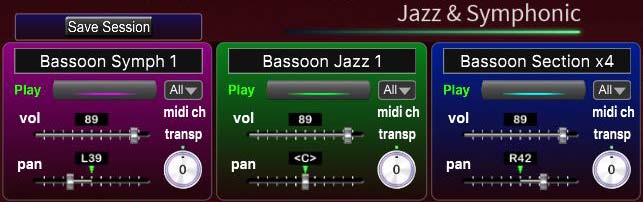
The instrument has three independent sampler layers. Each layer can host any of the three bassoon sound sets and has its own controls for volume, pan, and transpose.
How you use them is up to you. Load one sound set into a single section and play a plain solo bassoon. Load two and balance them against each other. Or load all three at once and shape the result with volume, pan, transpose, the Morph Mixer, Live Monitor, or any MIDI CC, blending the timbres into one sound or keeping them separate and switching between them as you play.
Because everything happens in real time, a phrase can start as a single jazz bassoon, open into the symphonic tone as you push, and swell into the full four-bassoon section, all inside one held note and without switching presets.
MIDI Channel
Each of the three sections has its own MIDI channel drop-down (MIDI Ch 1, 2, 3) with the values All and 1 to 16.
A specific number
The section responds only to that MIDI channel.
All
The section responds to every MIDI channel.
This lets you drive the three sections independently from different sources, for example three tracks in your DAW or a multi-channel controller.
Save Session
The Save Session function stores the current state of all instrument settings — which sound sets are loaded, their volumes, pans, transposes, effects, and all other parameters.
This feature is designed for the standalone application. When you save a session and relaunch the application later, a dialog will appear offering to restore your last saved state. If you decline, the instrument loads with default settings.
To change the sound set in a section, click the window displaying the currently loaded sound at the top of that section. This opens the list of the three bassoon sound sets (as shown in the picture).

| Bassoon Jazz 1 | Brighter, more focused tone with a sharp, clearly defined attack. For jazz solos and any line that has to be heard through a band. |
| Bassoon Symph 1 | Warmer, rounder tone with a soft attack. Symphonic solo voice, blends with the woodwind group, suits lyrical and cinematic writing. |
| Bassoon Section x4 | Four bassoons recorded together. Section weight for modern popular and classical styles. |
The same sound set can be loaded into more than one section, for example to detune or pan two copies of it against each other.
Control & Timbre

CONTROL
Keyboard, Wind, Breath buttons change performance modes: playing on keyboard instrument / playing with wind or breath controller (TEControl, EWI, Aerophone, Yamaha WX, Robkoo R1, DigiBrass Tilt, Tipsy, etc.)
TIMBRE
Dark, Normal, Bright — make the tone darker or brighter using these buttons.
KS On/Off
A separate KS On/Off button is available in each of the two playing modes, Keyboard and Breath Controller. It switches the articulation keyswitches on and off.
On
The lower keys act as keyswitches, switching articulations (soft attack, accented attack, squeeze, bend, fall, vibrato and growl) and lighting up in colour. You play in the upper part of the keyboard.
Off
Keyswitches are disabled, the whole keyboard becomes playable, and any active articulations reset to their default state.
Each mode has its own button, and it is visible only in that mode.
Spatial Effects
Reverb, delay, and stereo controls.
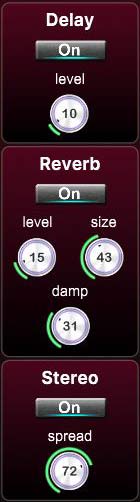
Reverb, Delay and Stereo — switch corresponding effects on/off.
Delay Level
Change the level of the Delay effect.
Reverb Level
Change the level of the Reverb effect.
Reverb Size
Adjust the size of the simulated room. This affects the duration of the reverb trail.
Reverb Damp
Control high-frequency reduction in the reverb tail for a warmer, natural sound.
Stereo Spread
Collapse (counter-clockwise) or expand (clockwise) your signal's stereo base.
Master Controls
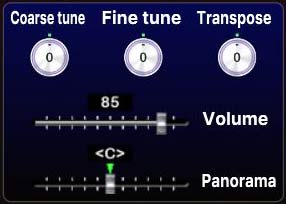
Coarse Tune, Fine Tune, Transpose, Volume, Panorama
Use the controls on this panel to make coarse or fine adjustments to pitch, transpose the overall tuning of the entire instrument, and modify overall volume and pan.
Effects 2 — Expression & Performance
Dynamic effects controlled via faders, mod wheel, breath, or aftertouch.

Expression, Vibrato, Growl, Expression2, Attack, Wah — switch corresponding effects on/off. This panel allows adding effects to your sustain samples via a fader or mod wheel for dynamic performances.
The Expression and Expression2 effects enhance the volume, brightness, and richness of the sound.
The Vibrato effect adjusts dynamically based on the position of the mod wheel or the breath intensity when using a breath or wind controller. We recorded some samples with natural vibrato to preserve sound quality. Therefore, you may occasionally hear a slight pulsation even if the Vibrato button is OFF.
The Growl effect emulates the vocal growling technique, a common sound production method used by brass and wind players to create a raspy, expressive tone.
The Attack effect adds emphasis to the beginning of each note. The intensity of the accent can be adjusted using the corresponding fader.
The Wah effect emulates the sound produced by guitar Wah pedals. You can activate one of the preset Wah settings by pressing any buttons numbered 1 to 5. To disable the effect, press the active button again. The Wah effect is controlled using the mod wheel or breath intensity on a breath or wind controller.
You can change the sensitivity of the Expression fader by adjusting the Sens knob.
For the Vibrato, Growl, and Expression2 effects, there are additional sliders located to the right of the faders that allow you to set the maximum intensity for the corresponding effects.
Set Control Change (CC#) number in the CC# box in accordance with your MIDI (Breath, Wind) controller settings. Typically, this is 1, 2, or 11. To adjust this parameter, click on the number and drag it up or down.
Aftertouch ON/OFF buttons switch corresponding effects on/off. Vibrato, Growl, and Expression2 effects will be triggered when the aftertouch is on.
Vibrato x2
The x2 button next to the Vibrato fader increases vibrato intensity by roughly one and a half times. One click gives a wider, more expressive vibrato. It is a toggle: on for the boosted vibrato, off for the normal one.
Soften
The Soften button changes how the Attack fader shapes the start of the note.
Soften off
Moving the fader up gives a sharper, more accented attack.
Soften on
Moving the fader up gives a smoother, softer attack instead.
A single button therefore flips the meaning of the fader movement, from an emphasized attack to a gentle one.
Keyswitches and Keyboard Layout
It displays all currently available articulations and corresponds to the C1 to B1 key range on your MIDI keyboard.

Articulations that start a phrase.
These articulations will only be in effect while the keyswitch is held.
C#1 Soft Attack
D#1 Accented Attack
F#1 Squeeze Short
G#1 Squeeze Long (press at least 200 ms before the note to avoid delay)
A#1 Bend
Articulations that end a phrase.
First hold the main note in the C2–C6 range, then press a keyswitch corresponding to the selected articulation.
C1 End Short
D1 End Long
E1 Fall Short
When you use these keyswitches, the sound will completely fade out. To restore the sound's volume, you need to release all keys for a brief moment.
Sustain notes with the Vibrato and Growl effects.
To add a Vibrato effect, press and hold one of the three keyswitches:
G1 — light vibrato
A1 — regular vibrato
B1 — intense vibrato
F1 — Growl effect
Three small round knobs located on the G1, A1, and B1 keys control the vibrato intensity for the corresponding keyswitches.
The keyswitches can be switched off completely with the KS On/Off button, which turns the whole keyboard into a playing range.
Live Monitor
Split the three sections across CC ranges and switch between the bassoon timbres as you play.
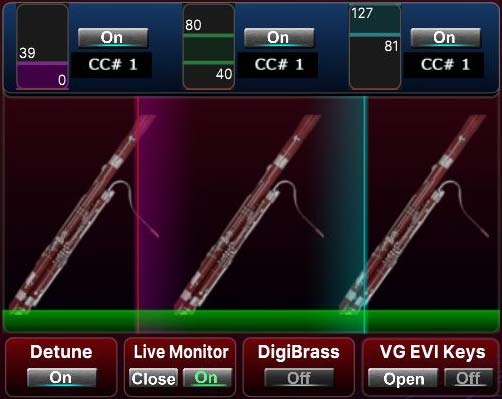
When the instrument is in Wind mode, the Live Monitor controls appear on the interface. Live Monitor splits the three instrument sections by incoming MIDI CC values, so you can move between three sounds in real time with a single controller: a fader, breath, the mod wheel, or any CC you assign. The ranges are set with the graphic range controls.
Two separate buttons control it. Open / Close shows or hides the graphic display on the panel, and On / Off switches the Live Monitor function itself on or off. The two are independent: you can leave the function running and close the display to free up screen space, or open the display while the function is off to set your ranges before using them.
In VG Bassoon this becomes a way of switching between the timbres and variations of the bassoon itself. Put Bassoon Jazz 1, Bassoon Symph 1 and Bassoon Section x4 on three CC ranges and you move from the jazz tone to the symphonic one to the full section without touching anything but your controller.
| Open / Close | Shows or hides the graphic display on the Live Monitor panel. It does not affect whether the function is working. |
| On / Off | Switches the Live Monitor function on or off. With it off, all three sections sound normally and the CC ranges are ignored. |
| CC assignment | Each of the three sections has its own assignable CC controller, so every section reacts to a CC of its own. |
| Range control | One per section. Drag the lower and upper limits. The section sounds while the value of its CC stays inside the range you set, and mutes as soon as the value leaves it. This is how you decide which section is active at which CC values. |
| Switching character | Hard. Crossing a range limit turns the section on or off instantly, with no crossfade. |
| Coloured bars | The red, blue and yellow bars show CC movement against the ranges you have set. They are visual feedback only and do not control the sound. |
In practice: spread the three bassoons across the range of a single CC and switch between them live, with breath or a fader, right in the middle of a phrase.
This is especially useful in live performance with wind controllers that include motion sensors, such as the Roland Aerophone Pro, Robkoo R1, or Clarii mini. It also works with smartphone-based motion controller apps like MusiKraken and similar, and with any device that can send CC messages.
Backing Track Player
Play over your backing tracks without leaving the instrument.
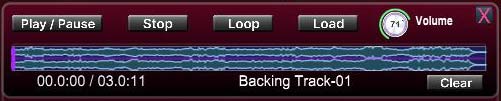
A player for backing tracks and minus-one recordings is built directly into the instrument. Load a track and play bassoon over it without leaving the plugin and without opening external software. WAV, AIFF, FLAC and MP3 files are supported.
| Open / Close (X) | Shows or hides the player panel. |
| Load | Opens a file browser to choose a backing track (WAV, AIFF, FLAC, MP3). Once loaded, the track appears in the player. |
| Waveform | Displays the loaded track. A moving cursor shows the current playback position. |
| Play / Pause | Starts playback. Pressing again pauses and keeps the position, and the next press continues from the same point. |
| Stop | Stops playback and returns to the beginning of the track. |
| Seek bar | The strip below the waveform. Drag it or click anywhere on it to jump to any point in the track. |
| Time display | Shows the elapsed time and the total length of the track. |
| Loop | When enabled, the track repeats automatically from the start once it reaches the end. |
| Volume | Level of the backing track, adjusted independently of the instrument volume. |
| Clear | Unloads the current track and empties the player. |
| Track name | The name of the loaded file is displayed below the waveform. |
Handy for rehearsing over a backing track while playing live on top of it with different bassoon timbres.
Additional Effects
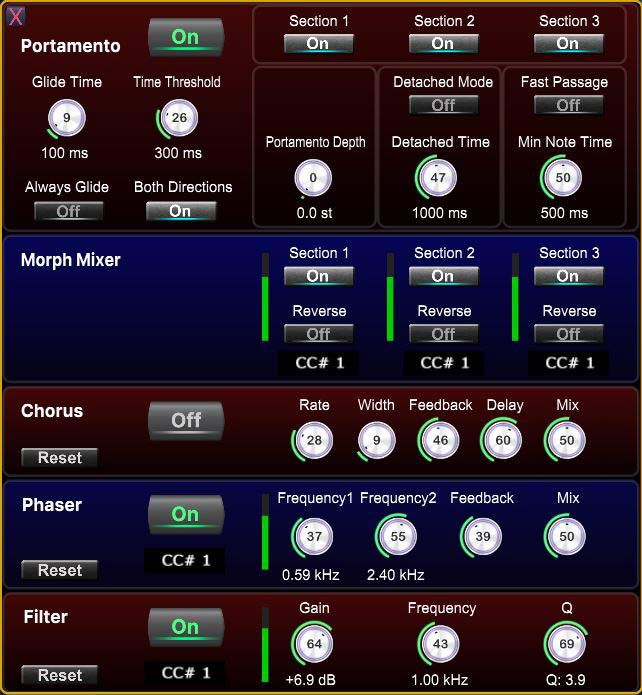 FX1 panel
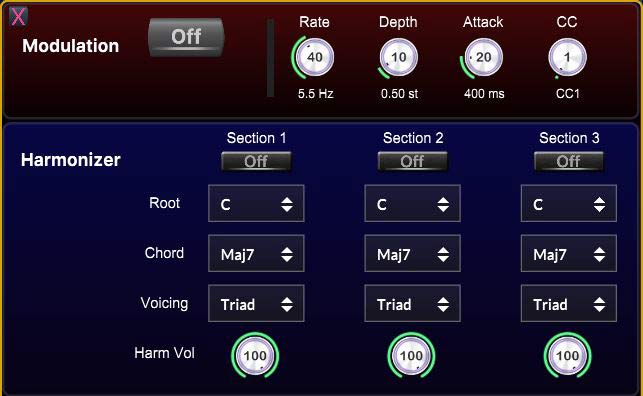 FX2 panel
Creates a smooth glide between consecutively played notes.
| Glide Time | Glide duration in milliseconds. Higher values produce a slower, more gradual transition. |
| Legato Threshold | Maximum gap between notes for portamento to trigger. |
| Always Glide | When enabled, portamento is always applied during legato playing. |
| Both Directions | When enabled, glide works in both directions (up and down). |
| Detached Mode | Enables portamento between detached (non-legato) notes within Detached Time. |
| Detached Time | Maximum pause between notes for Detached Mode to trigger. |
| Fast Passage | When enabled, disables portamento for fast passages, preserving clear note attacks. |
| Min Note Time | If notes are played faster than this threshold, portamento is not applied. |
| Section 1 / 2 / 3 | Enable or disable portamento independently for each bassoon layer. |
Allows smooth mixing or morphing between the three bassoon layers in real time using a MIDI CC controller. Assign any CC and move from the solo jazz tone through the symphonic voice into the full four-bassoon section without stopping the note.
| Section 1 / 2 / 3 | Enables CC volume control for that layer. |
| CC | MIDI CC number (0–127) that controls the volume of this layer. |
| Reverse | Inverts the control direction. With Reverse off: CC=0 is silence, CC=127 is full volume. |
Adds a soft, slightly detuned doubling of the sound for a sense of width and depth.
| On / Off | Enables or disables the effect. |
| Rate | Speed of the LFO modulation in Hz. |
| Width | Spread of the modulation across the stereo field. |
| Feedback | Feeds a portion of the processed signal back into the effect. Increases richness and resonance. |
| Delay | Base delay time. Shorter values produce subtle thickening; longer values push toward flanger territory. |
| Mix | Balance between the dry and processed signal. |
| Reset | Restores all Chorus parameters to their default values. |
Creates a characteristic sweeping or rotating sound by shifting the phase of specific frequencies.
| On / Off | Enables or disables the effect. |
| Frequency 1 | Lower frequency of the phase shift range (20 Hz – 20 kHz). |
| Frequency 2 | Upper frequency of the phase shift range (20 Hz – 20 kHz). |
| Feedback | Amount of signal fed back into the phaser. Increases intensity and resonance. |
| Mix | Balance between the dry and processed signal. |
| CC# | MIDI CC number for real-time control of the frequency sweep. |
| Reset | Restores all Phaser parameters to their default values. |
Emphasizes or suppresses a specific frequency range.
| On / Off | Enables or disables the effect. |
| Frequency | The center or cutoff frequency of the filter. |
| Gain | Boost or cut applied at the selected frequency (in dB). |
| Q | Bandwidth of the filter. High Q = narrow focused peak; low Q = broad gentle curve. |
| CC# | MIDI CC number for real-time control of the filter frequency. |
| Reset | Restores all Filter parameters to their default values. |
An LFO-based pitch modulation effect — from a barely noticeable shimmer to an intense expressive vibrato. Depth can be controlled in real time via MIDI CC, making it equally useful with a mod wheel or a wind controller.
| On / Off | Enables or disables the effect. |
| Rate | Speed of modulation in Hz. Lower values = slow wide vibrato; higher values = fast tight wobble. |
| Depth | Intensity of the pitch modulation. |
| Attack | Time for modulation to reach full depth after note start. Longer attack = cleaner note onset. |
| CC# | MIDI CC number used to control modulation depth in real time. |
CC Value Indicators
Morph Mixer, Phaser, Filter and Modulation have visual indicators that show the level of the incoming CC in real time, so you can see exactly how your controller drives each effect.
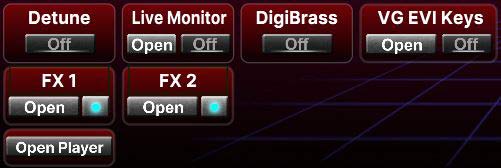
Detune
Toggles a slight pitch variation on or off to add a more natural, live-sounding character to the instrument.
DigiBrass
Displays a green bar above the keyboard showing the tilt level of DigiBrass controllers for easier visual feedback while playing.
VG EVI Keys
A unique keyboard-to-valve converter that lets you play trumpet-style valve fingerings on a standard MIDI keyboard. Learn more →
Two buttons control it. Open / Close opens or closes the VG EVI Keys panel, and On / Off switches the function itself on or off. You can close the panel while leaving the function active and keep playing valve fingerings with the panel out of the way.

Open Player
Opens the backing track player. Use it whenever the player panel has been closed and you want it back on screen. The player and its controls are described in the Backing Track Player section.
FX1 and FX2 Indicators
Small indicator lamps on the FX1 and FX2 buttons show whether at least one effect on that panel is switched on.
The FX1 lamp lights up when any FX1 effect is active: Filter (Wah), Phaser, Chorus, Portamento or Morph.
The FX2 lamp lights up when any FX2 effect is active: Vibrato (Modulation) or Harmonizer.
One glance tells you whether a panel has anything running, without opening it.
VG Harmonizer (FX2 button)
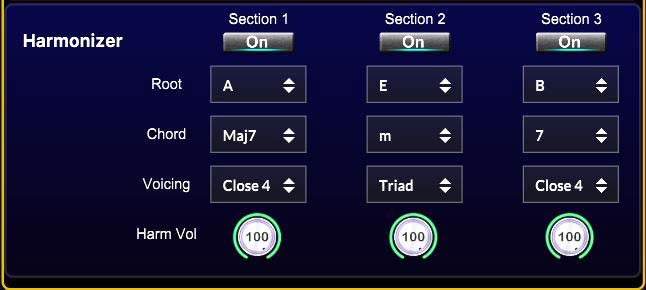 Each bassoon section has its own independent harmonizer. Play a single melody note — the harmonizer builds a chord below it automatically. Each section can have different settings, so a single line can turn into a written-out reed section with three different harmonic colours sounding at once. Opens when you press the FX2 button.
| Section 1 / 2 / 3 | Each button activates the harmonizer for the corresponding instrument section independently. You can enable harmonization on any combination of the three sections simultaneously. |
| Root | Root note of the chord structure: C, C#, D, Eb, E, F, F#, G, Ab, A, Bb, B. |
| Chord |
Defines the harmonic system used to build chords across the scale:Maj7 major scale
7 Mixolydian
m7 Dorian
m minor
Maj7#11 Lydian
m7b9 Phrygian
m7b5 Locrian
sus4 parallel chromatic
Maj7b5 parallel chromatic
sus4 and Maj7b5 move all voices together chromatically, not tied to a root. |
| Voicing |
Triad — three-note chord, open position
Close 4v — four-note chord, close voicing
Open 4v — four-note chord, wide voicing
|
| Harm Vol | Volume of the harmony voices relative to the melody note (0–100%). The melody note always plays at full performed velocity. |

Samples
Opens a window showing the current location of the audio sample files.
Settings (gear icon)
Opens a window where you can configure audio drivers, buffer size, sample rate, MIDI input and output devices, MIDI channels, and other system settings related to audio playback and MIDI connectivity. With the Lazy Load option enabled, samples will load into RAM gradually as you start playing them.
Quick Load
Opens a quick-access preset browser for the Quick Load folder. This is a convenient place to save your favourite and most frequently used presets for instant recall — without navigating the full preset library. Presets starting with K are optimized for MIDI keyboard playing; presets starting with W are designed for wind controllers.
Save
Saves the current state of all instrument settings as a preset.
Preset Browser
Click the preset name display to open the full preset browser. Here you can select any of the factory presets, save your own custom presets, or delete them.
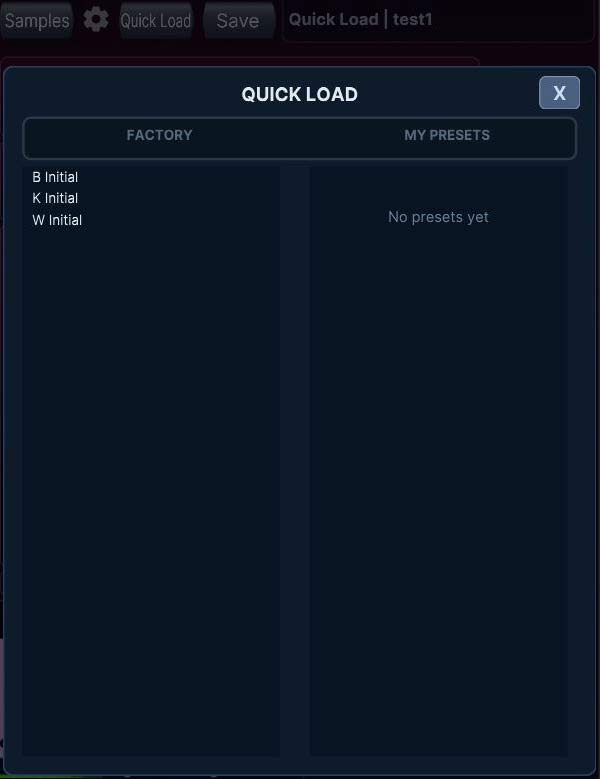
Quick Load Browser
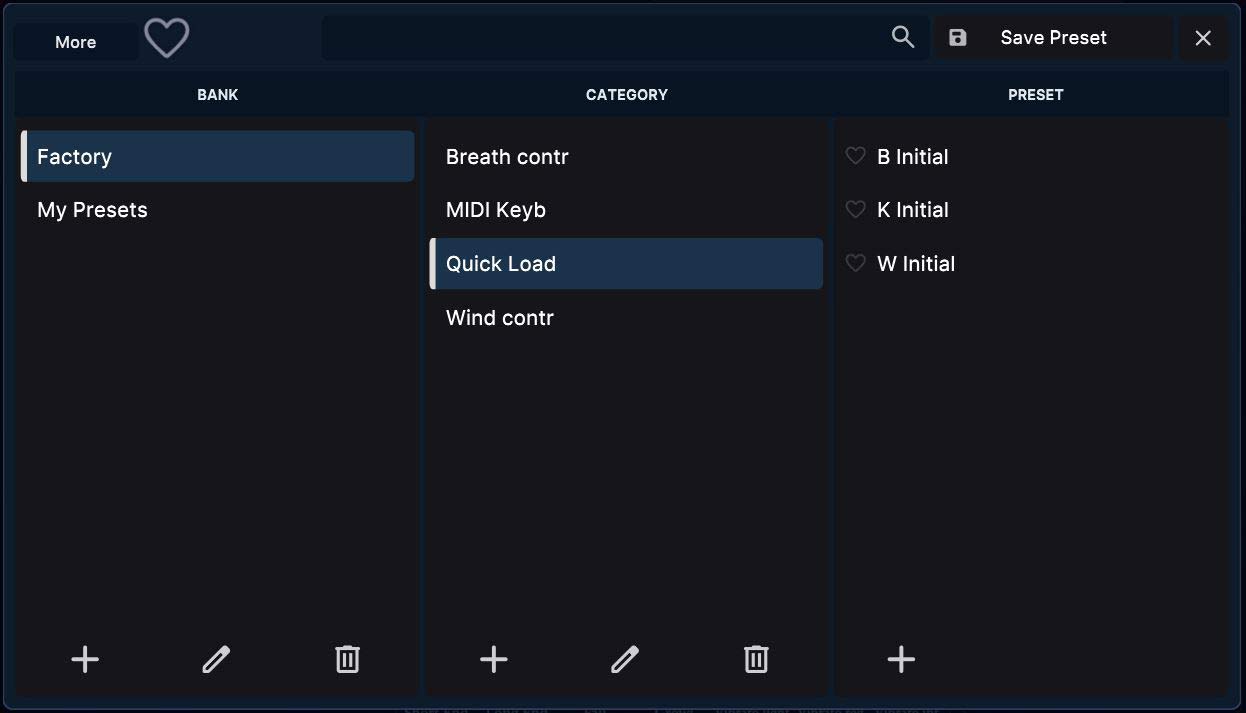
Preset Browser
Settings & Options
Utility controls and display options.

Pitch Bend Range
The number above the pitch bend indicator sets the range in semitones (1–12). Set it to 2 for standard keyboard use, or up to 12 for wide EWI-style bends.

Panic
Immediately stops all sound playback and clears any stuck notes. Use it if a note gets stuck during performance.

Zoom
Adjusts the interface size: 0.75 (smaller), 1 (default), 1.25 (larger). Choose the zoom level that best fits your screen and workflow.
Installation
Step-by-step setup for Windows and macOS.
Step 1 — Run the installer
Extract the installer archive and run the Setup.exe file inside it. Check "Create a desktop shortcut" and complete the installation. The sound files are placed in C:\Program Files\VG Sound Collection\
Step 2 — First launch (required once)
Launch the standalone application by double-clicking the VG Bassoon desktop icon. When prompted "Choose Sample Folder", select C:\Program Files\VG Sound Collection\ — then close and reopen the application. If the bassoons load correctly, installation is complete.
Step 1 — Run the installer
Extract the installer archive and run the .pkg installer inside it, following the prompts. The sound files are placed in Macintosh HD/Library/Audio/VG Sound Collection/
Step 2 — First launch (required once)
Open the Applications folder and double-click VG Bassoon. When prompted "Choose Sample Folder", select Macintosh HD/Library/Audio/VG Sound Collection/ — then close and reopen the application. If the bassoons load correctly, installation is complete.
System Requirements
Minimum requirements for running VG Bassoon on Windows and macOS.
| Operating System | Windows 7 or later (64-bit) · macOS 10.14 (Mojave) or later |
| RAM | 8 GB minimum |
| CPU | Modern multi-core processor recommended |
| Audio Interface | ASIO-compatible (Windows) or Core Audio (macOS) |
| Plugin Formats | VST, VST3, AU (64-bit) · Standalone application |
Size
| Installer download | 602 MB (Windows) · 902 MB (macOS) |
| Installed library | Approximately 923 MB |
| Sample quality | 24 bit / 44.1 kHz |
Troubleshooting
Common issues and solutions.
The sample path is not set correctly. Close the application and set the path manually in the LinkWindows file on Windows, or LinkOSX on macOS. The file sits in the VG Bassoon configuration folder:
Windows: C:\Users\[username]\AppData\Roaming\VG Trumpet\VG Bassoon\
macOS: ~/Library/Application Support/VG Trumpet/VG Bassoon/
Open it in a text editor. It holds one single line: the full path to your VG Sound Collection folder, with no quotes and no backslash at the end.
Windows example: C:\Program Files\VG Sound Collection
macOS example: /Library/Audio/VG Sound Collection
Correct the line, save the file, and start the application again.
Install ASIO4ALL from asio4all.org. In the VG Bassoon audio settings, select ASIO4ALL first, then switch back to your native ASIO driver.
Always use realtime export (realtime bounce) when rendering your MIDI track. This prevents timing errors that can occur with offline bouncing.
There is no separate update file. The installer in your account is always kept up to date. Log in at vgtrumpet.com/my-account/, go to Downloads, and download the installer again. Install it over your existing version — your sound files and settings stay untouched.
Windows: Delete the folder C:\Users\[username]\AppData\Roaming\VG Trumpet\VG Bassoon\
macOS: Delete the folder ~/Library/Application Support/VG Trumpet/VG Bassoon/
Delete only the VG Bassoon folder. The VG Trumpet folder above it holds the settings of your other VG instruments, so leave it alone. Then run the installer again.
For further assistance, contact vgtrumpet@yahoo.com