✕
User Guide
A complete reference for all interface controls, effects, presets, and installation.
VG Windscape offers three control modes — Keyboard, Wind, and Breath — each optimized for different performance setups. Click any image to enlarge.
Two things you will not find in a wind instrument. Jump straight to either.
Short videos, one task each: from ordering VG Windscape to the last panel.
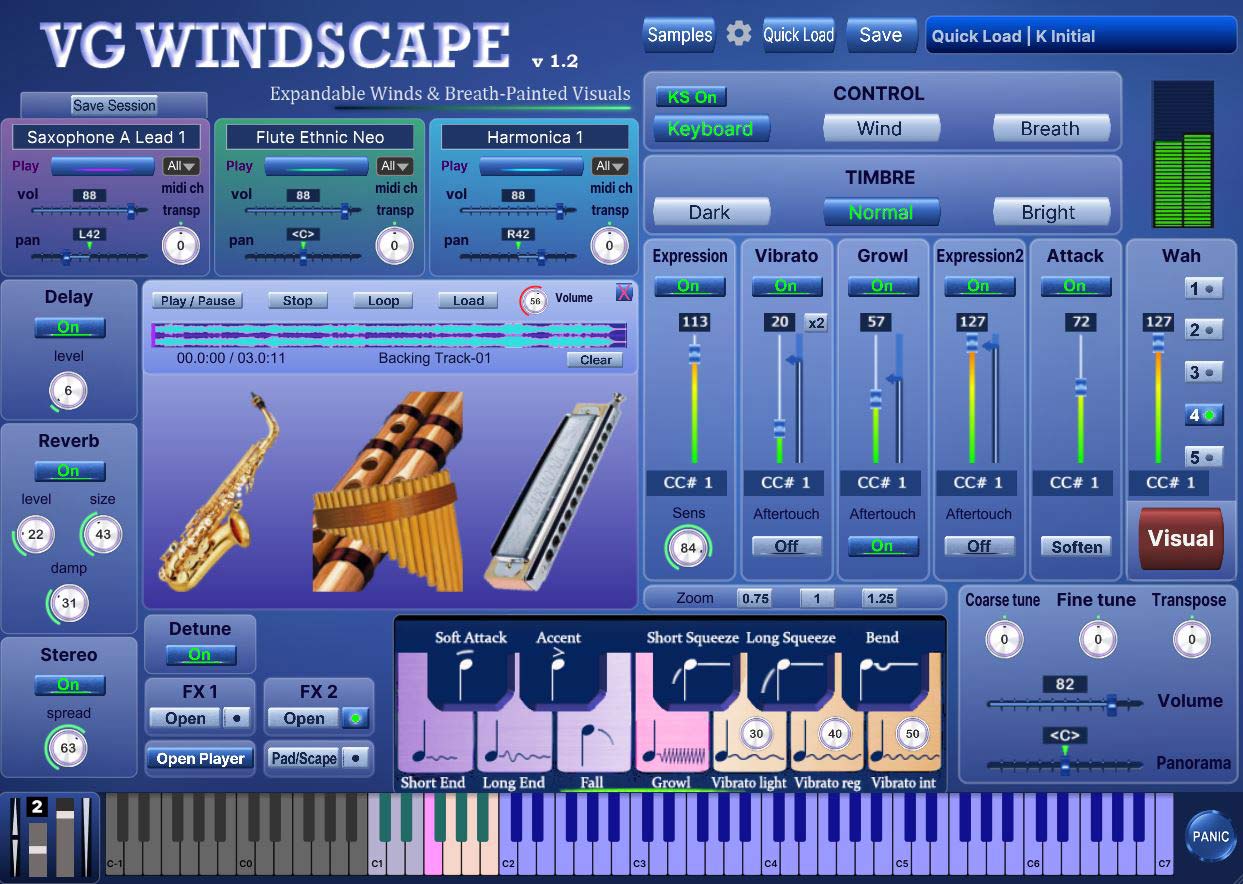
Keyboard mode
VG Windscape is built on the VG Wind Ensemble performance engine and plays like it: breath, notes and controllers shape the sound the way a real wind instrument responds. On top of that it does two things a wind instrument cannot do at all.
Pad/Scape mode suspends the natural behaviour of the instrument. Each of the three sections gets a slow attack, a long release and its own delay and reverb, so a breath turns into a sustained bed that keeps sounding after you have stopped playing. This is deliberately not the behaviour of a real instrument, and that is the point.
The Visual window paints while you play. Breath, notes and controllers drive a picture in a second window that you can put on a projector or a second screen. It is a part of the performance rather than a decoration.
VG Windscape comes with thirteen sound sets built for pads and textures. Those sets live in the same sound folder as the rest of your VG collection and work in VG Wind Ensemble as well, so nothing you already own is left behind and nothing new is locked away.
It is a separate instrument, not an update to VG Wind Ensemble. If you own VG Wind Ensemble you keep it exactly as it is; VG Windscape adds sounds and a visual layer that VG Wind Ensemble was never designed to have, and the visual layer will keep growing with new effects.
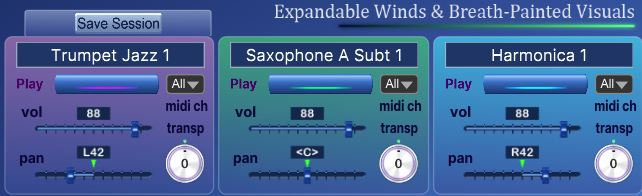
The instrument allows you to blend up to three sound sets simultaneously using three independent sampler layers. Each layer can host a different instrument and has its own controls for volume, pan, and transpose.
Load different instruments into each layer and experiment with new sonic combinations — for example, blending a saxophone, trumpet, and trombone into a single expressive sound.
Each of the three sections has its own MIDI channel drop-down (MIDI Ch 1, 2, 3) with the values All and 1 to 16.
A specific number
The section responds only to that MIDI channel.
All
The section responds to every MIDI channel.
This lets you drive the three sections independently from different sources, for example three tracks in your DAW or a multi-channel controller.
The Save Session function stores the current state of all instrument settings — which instruments are loaded, their volumes, pans, transposes, effects, and all other parameters.
This feature is designed for the standalone application. When you save a session and relaunch the application later, a dialog will appear offering to restore your last saved state. If you decline, the instrument loads with default settings.
Video: Play it in your DAW
To select an instrument sample, click the window displaying the currently loaded instrument at the top of the section. This will open a list of all instruments available in your VG collection (as shown in the picture).
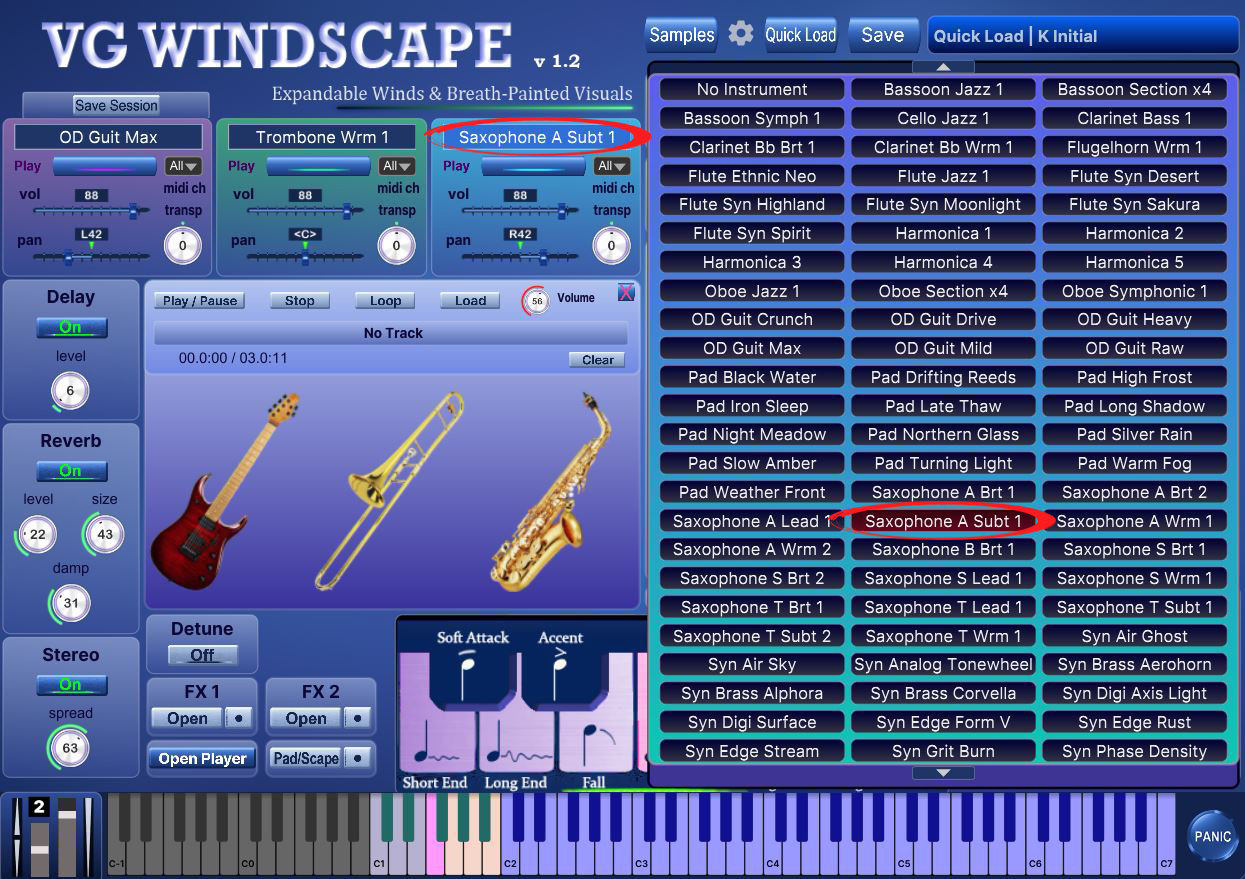
Scrolling the list
The arrow buttons at the edges of the window scroll the list, so you can page through every sound set available to you even when there are more of them than fit on screen. Scrolling is smooth.
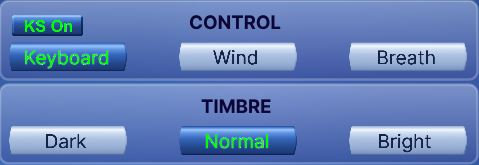
Keyboard, Wind, Breath buttons change performance modes: playing on keyboard instrument / playing with wind or breath controller (TEControl, EWI, Aerophone, Yamaha WX, Robkoo R1, DigiBrass Tilt, Tipsy, etc.)
Video: Connect a wind controller · Play from a MIDI keyboard
Dark, Normal, Bright — make the tone darker or brighter using these buttons.
A separate KS On/Off button is available in each of the two playing modes, Keyboard and Breath Controller. It switches the articulation keyswitches on and off.
On
The lower keys act as keyswitches, switching articulations (bend, gliss, flutter, vibrato, accent and others) and lighting up in colour. You play in the upper part of the keyboard.
Off
Keyswitches are disabled, the whole keyboard becomes playable, and any active articulations reset to their default state.
Each mode has its own button, and it is visible only in that mode.
Reverb, delay, and stereo controls.
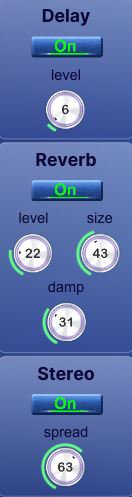
Reverb, Delay and Stereo — switch corresponding effects on/off.
Delay Level
Change the level of the Delay effect.
Reverb Level
Change the level of the Reverb effect.
Reverb Size
Adjust the size of the simulated room. This affects the duration of the reverb trail.
Reverb Damp
Control high-frequency reduction in the reverb tail for a warmer, natural sound.
Stereo Spread
Collapse (counter-clockwise) or expand (clockwise) your signal's stereo base.
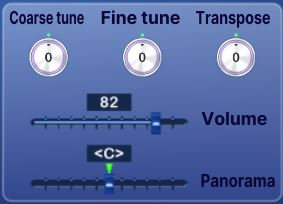
Coarse Tune, Fine Tune, Transpose, Volume, Panorama
Use the controls on this panel to make coarse or fine adjustments to pitch, transpose the overall tuning of the entire instrument, and modify overall volume and pan.
Dynamic effects controlled via faders, mod wheel, breath, or aftertouch.
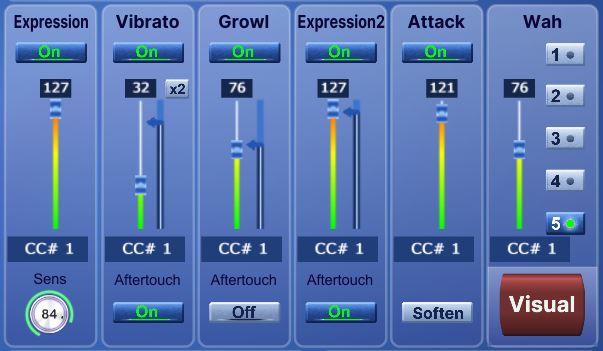
Expression, Vibrato, Growl, Expression2, Attack, Wah — switch corresponding effects on/off. This panel allows adding effects to your sustain samples via a fader or mod wheel for dynamic performances.
The Expression and Expression2 effects enhance the volume, brightness, and richness of the sound.
The Vibrato effect adjusts dynamically based on the position of the mod wheel or the breath intensity when using a breath or wind controller. We recorded some samples with natural vibrato to preserve sound quality. Therefore, you may occasionally hear a slight pulsation even if the Vibrato button is OFF.
The Growl effect emulates the vocal growling technique, a common sound production method used by brass and wind players to create a raspy, expressive tone.
The Attack effect adds emphasis to the beginning of each note. The intensity of the accent can be adjusted using the corresponding fader.
The Wah effect emulates the sound produced by guitar Wah pedals. You can activate one of the preset Wah settings by pressing any buttons numbered 1 to 5. To disable the effect, press the active button again. The Wah effect is controlled using the mod wheel or breath intensity on a breath or wind controller.
You can change the sensitivity of the Expression fader by adjusting the Sens knob.
For the Vibrato, Growl, and Expression2 effects, there are additional sliders located to the right of the faders that allow you to set the maximum intensity for the corresponding effects.
Set Control Change (CC#) number in the CC# box in accordance with your MIDI (Breath, Wind) controller settings. Typically, this is 1, 2, or 11. To adjust this parameter, click on the number and drag it up or down.
Aftertouch ON/OFF buttons switch corresponding effects on/off. Vibrato, Growl, and Expression2 effects will be triggered when the aftertouch is on.
The x2 button next to the Vibrato fader increases vibrato intensity by roughly one and a half times. One click gives a wider, more expressive vibrato. It is a toggle: on for the boosted vibrato, off for the normal one.
The Soften button changes how the Attack fader shapes the start of the note.
Soften off
Moving the fader up gives a sharper, more accented attack.
Soften on
Moving the fader up gives a smoother, softer attack instead.
A single button therefore flips the meaning of the fader movement, from an emphasized attack to a gentle one.
It displays all currently available articulations and corresponds to the C1 to B1 key range on your MIDI keyboard.
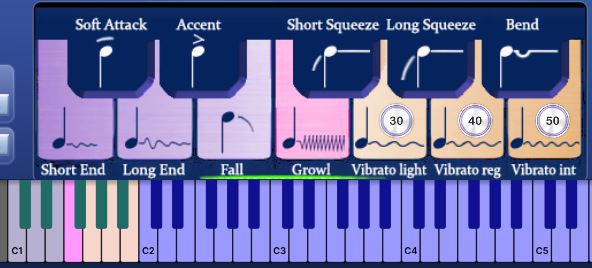
Articulations that start a phrase.
These articulations will only be in effect while the keyswitch is held.
C#1 Soft Attack
D#1 Accented Attack
F#1 Squeeze Short
G#1 Squeeze Long (press at least 200 ms before the note to avoid delay)
A#1 Bend
Articulations that end a phrase.
First hold the main note in the C2–C6 range, then press a keyswitch corresponding to the selected articulation.
C1 End Short
D1 End Long
E1 Fall Short
When you use these keyswitches, the sound will completely fade out. To restore the sound's volume, you need to release all keys for a brief moment.
Sustain notes with the Vibrato and Growl effects.
To add a Vibrato effect, press and hold one of the three keyswitches:
G1 — light vibrato
A1 — regular vibrato
B1 — intense vibrato
F1 — Growl effect
Three small round knobs located on the G1, A1, and B1 keys control the vibrato intensity for the corresponding keyswitches.
The keyswitches can be switched off completely with the KS On/Off button, which turns the whole keyboard into a playing range.
Split the three sections across CC ranges and switch between them as you play.
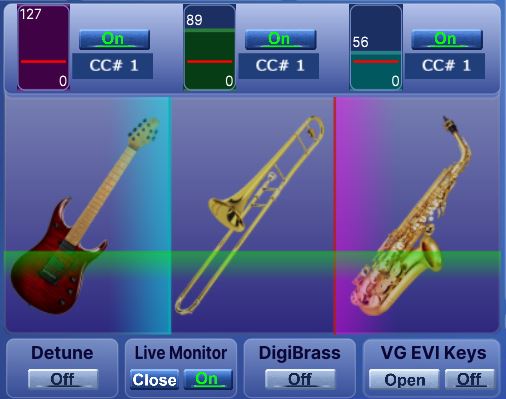
When the instrument is in Wind mode, a button labeled Live Monitor appears on the interface. Live Monitor splits the three instrument sections by incoming MIDI CC values, so you can move between three sounds in real time with a single controller: a fader, breath, the mod wheel, or any CC you assign. The ranges are set with the graphic range controls.
| CC assignment | Each of the three sections has its own assignable CC controller, so every section reacts to a CC of its own. |
| Range control | One per section. Drag the lower and upper limits. The section sounds while the value of its CC stays inside the range you set, and mutes as soon as the value leaves it. This is how you decide which section is active at which CC values. |
| Switching character | Hard. Crossing a range limit turns the section on or off instantly, with no crossfade. |
| Coloured bars | The red, blue and yellow bars show CC movement against the ranges you have set. They are visual feedback only and do not control the sound. |
In practice: spread three sounds across the range of a single CC and switch between them live, with breath or a fader, right in the middle of a phrase.
This is especially useful in live performance with wind controllers that include motion sensors, such as the Roland Aerophone Pro, Robkoo R1, or Clarii mini. It also works with smartphone-based motion controller apps like MusiKraken and similar, and with any device that can send CC messages.
Play over your backing tracks without leaving the instrument.

A player for backing tracks and minus-one recordings is built directly into the instrument. Load a track and play over it with any of the instrument sounds, without leaving the plugin and without opening external software. WAV, AIFF, FLAC and MP3 files are supported.
| Open / Close (X) | Shows or hides the player panel. |
| Load | Opens a file browser to choose a backing track (WAV, AIFF, FLAC, MP3). Once loaded, the track appears in the player. |
| Waveform | Displays the loaded track. A moving cursor shows the current playback position. |
| Play / Pause | Starts playback. Pressing again pauses and keeps the position, and the next press continues from the same point. |
| Stop | Stops playback and returns to the beginning of the track. |
| Seek bar | The strip below the waveform. Drag it or click anywhere on it to jump to any point in the track. |
| Time display | Shows the elapsed time and the total length of the track. |
| Loop | When enabled, the track repeats automatically from the start once it reaches the end. |
| Volume | Level of the backing track, adjusted independently of the instrument volume. |
| Clear | Unloads the current track and empties the player. |
| Track name | The name of the loaded file is displayed below the waveform. |
Handy for rehearsing over a backing track while playing live on top of it with different instruments and timbres.
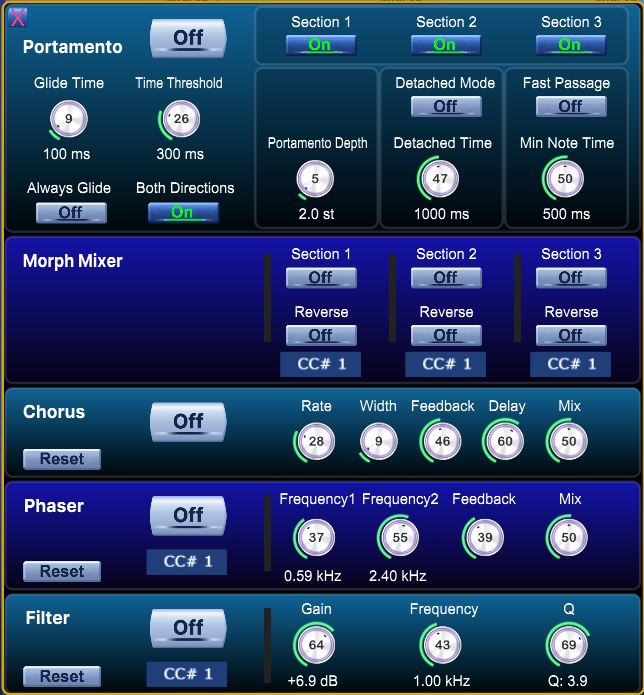 FX1 panel
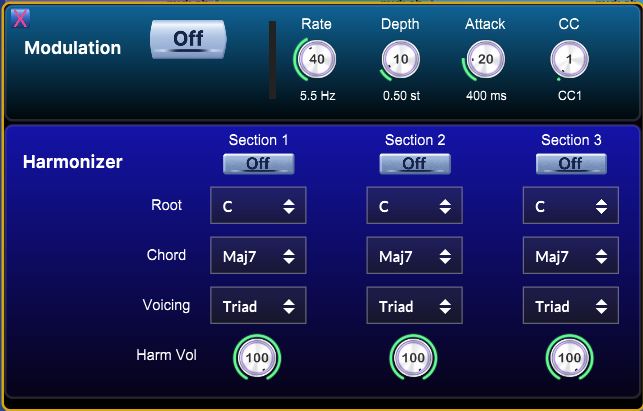 FX2 panel
Creates a smooth glide between consecutively played notes.
| Glide Time | Glide duration in milliseconds. Higher values produce a slower, more gradual transition. |
| Legato Threshold | Maximum gap between notes for portamento to trigger. |
| Always Glide | When enabled, portamento is always applied during legato playing. |
| Both Directions | When enabled, glide works in both directions (up and down). |
| Detached Mode | Enables portamento between detached (non-legato) notes within Detached Time. |
| Detached Time | Maximum pause between notes for Detached Mode to trigger. |
| Fast Passage | When enabled, disables portamento for fast passages, preserving clear note attacks. |
| Min Note Time | If notes are played faster than this threshold, portamento is not applied. |
| Section 1 / 2 / 3 | Enable or disable portamento independently for each instrument layer. |
Allows smooth mixing or morphing between the three instrument layers in real time using a MIDI CC controller.
| Section 1 / 2 / 3 | Enables CC volume control for that layer. |
| CC | MIDI CC number (0–127) that controls the volume of this layer. |
| Reverse | Inverts the control direction. With Reverse off: CC=0 is silence, CC=127 is full volume. |
Adds a soft, slightly detuned doubling of the sound for a sense of width and depth.
| On / Off | Enables or disables the effect. |
| Rate | Speed of the LFO modulation in Hz. |
| Width | Spread of the modulation across the stereo field. |
| Feedback | Feeds a portion of the processed signal back into the effect. Increases richness and resonance. |
| Delay | Base delay time. Shorter values produce subtle thickening; longer values push toward flanger territory. |
| Mix | Balance between the dry and processed signal. |
| Reset | Restores all Chorus parameters to their default values. |
Creates a characteristic sweeping or rotating sound by shifting the phase of specific frequencies.
| On / Off | Enables or disables the effect. |
| Frequency 1 | Lower frequency of the phase shift range (20 Hz – 20 kHz). |
| Frequency 2 | Upper frequency of the phase shift range (20 Hz – 20 kHz). |
| Feedback | Amount of signal fed back into the phaser. Increases intensity and resonance. |
| Mix | Balance between the dry and processed signal. |
| CC# | MIDI CC number for real-time control of the frequency sweep. |
| Reset | Restores all Phaser parameters to their default values. |
Emphasizes or suppresses a specific frequency range.
| On / Off | Enables or disables the effect. |
| Frequency | The center or cutoff frequency of the filter. |
| Gain | Boost or cut applied at the selected frequency (in dB). |
| Q | Bandwidth of the filter. High Q = narrow focused peak; low Q = broad gentle curve. |
| CC# | MIDI CC number for real-time control of the filter frequency. |
| Reset | Restores all Filter parameters to their default values. |
An LFO-based pitch modulation effect — from a barely noticeable shimmer to an intense expressive vibrato. Depth can be controlled in real time via MIDI CC, making it equally useful with a mod wheel or a wind controller.
| On / Off | Enables or disables the effect. |
| Rate | Speed of modulation in Hz. Lower values = slow wide vibrato; higher values = fast tight wobble. |
| Depth | Intensity of the pitch modulation. |
| Attack | Time for modulation to reach full depth after note start. Longer attack = cleaner note onset. |
| CC# | MIDI CC number used to control modulation depth in real time. |
Morph Mixer, Phaser, Filter and Modulation have visual indicators that show the level of the incoming CC in real time, so you can see exactly how your controller drives each effect.
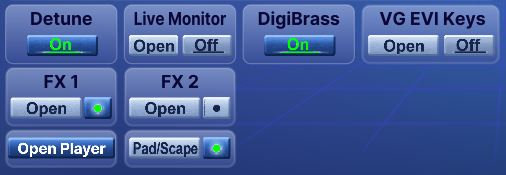
Detune
Toggles a slight pitch variation on or off to add a more natural, live-sounding character to the instrument.
Pad/Scape
Opens the Pad/Scape panel, where each section gets its long attack and release, its own delay and reverb, and its freeze. The small indicator beside the button lights whenever anything inside the panel is switched on, so you can tell at a glance whether the instrument is in pad mode.
DigiBrass
Displays a green bar above the keyboard showing the tilt level of DigiBrass controllers for easier visual feedback while playing.
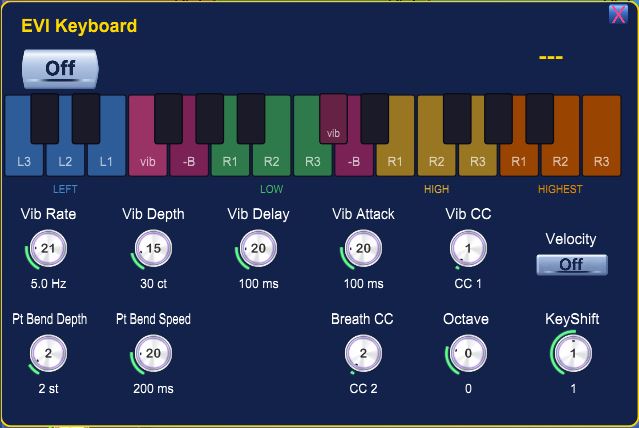
VG EVI Keys
Opens the VG EVI Keys panel — a unique keyboard-to-valve converter that lets you play trumpet-style valve fingerings on a standard MIDI keyboard. Learn more →
Open Player
Opens the backing track player. Use it whenever the player panel has been closed and you want it back on screen. The player and its controls are described in the Backing Track Player section.
FX1 and FX2 Indicators
Small indicator lamps on the FX1 and FX2 buttons show whether at least one effect on that panel is switched on.
The FX1 lamp lights up when any FX1 effect is active: Filter (Wah), Phaser, Chorus, Portamento or Morph.
The FX2 lamp lights up when any FX2 effect is active: Vibrato (Modulation) or Harmonizer.
One glance tells you whether a panel has anything running, without opening it.
VG Harmonizer (FX2 button)
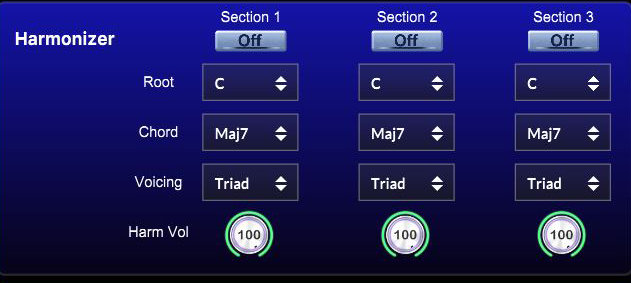 Each instrument section has its own independent harmonizer. Play a single melody note — the harmonizer builds a chord below it automatically. Each section can have different settings, allowing three different harmonic colors to sound simultaneously. Opens when you press the FX2 button.
| Section 1 / 2 / 3 | Each button activates the harmonizer for the corresponding instrument section independently. You can enable harmonization on any combination of the three sections simultaneously. |
| Root | Root note of the chord structure: C, C#, D, Eb, E, F, F#, G, Ab, A, Bb, B. |
| Chord |
Defines the harmonic system used to build chords across the scale:Maj7 major scale
7 Mixolydian
m7 Dorian
m minor
Maj7#11 Lydian
m7b9 Phrygian
m7b5 Locrian
sus4 parallel chromatic
Maj7b5 parallel chromatic
sus4 and Maj7b5 move all voices together chromatically, not tied to a root. |
| Voicing |
Triad — three-note chord, open position
Close 4v — four-note chord, close voicing
Open 4v — four-note chord, wide voicing
|
| Harm Vol | Volume of the harmony voices relative to the melody note (0–100%). The melody note always plays at full performed velocity. |

Samples
Opens a window showing the current location of the audio sample files.
Settings (gear icon)
Opens a window where you can configure audio drivers, buffer size, sample rate, MIDI input and output devices, MIDI channels, and other system settings related to audio playback and MIDI connectivity. With the Lazy Load option enabled, samples will load into RAM gradually as you start playing them.
Video: Low latency on Windows: ASIO, ASIO4ALL, buffer · Connect a wind controller
Quick Load
Opens a quick-access preset browser for the Quick Load folder. This is a convenient place to save your favourite and most frequently used presets for instant recall — without navigating the full preset library. Presets starting with K are optimized for MIDI keyboard playing; presets starting with W are designed for wind controllers.
Save
Saves the current state of all instrument settings as a preset.
Preset Browser
Click the preset name display to open the full preset browser. Here you can select any of the factory presets, save your own custom presets, or delete them.
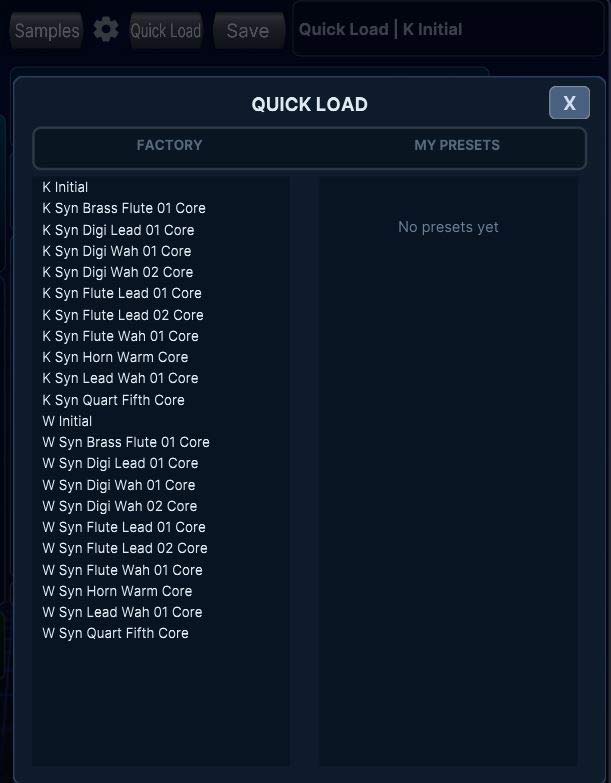
Quick Load Browser
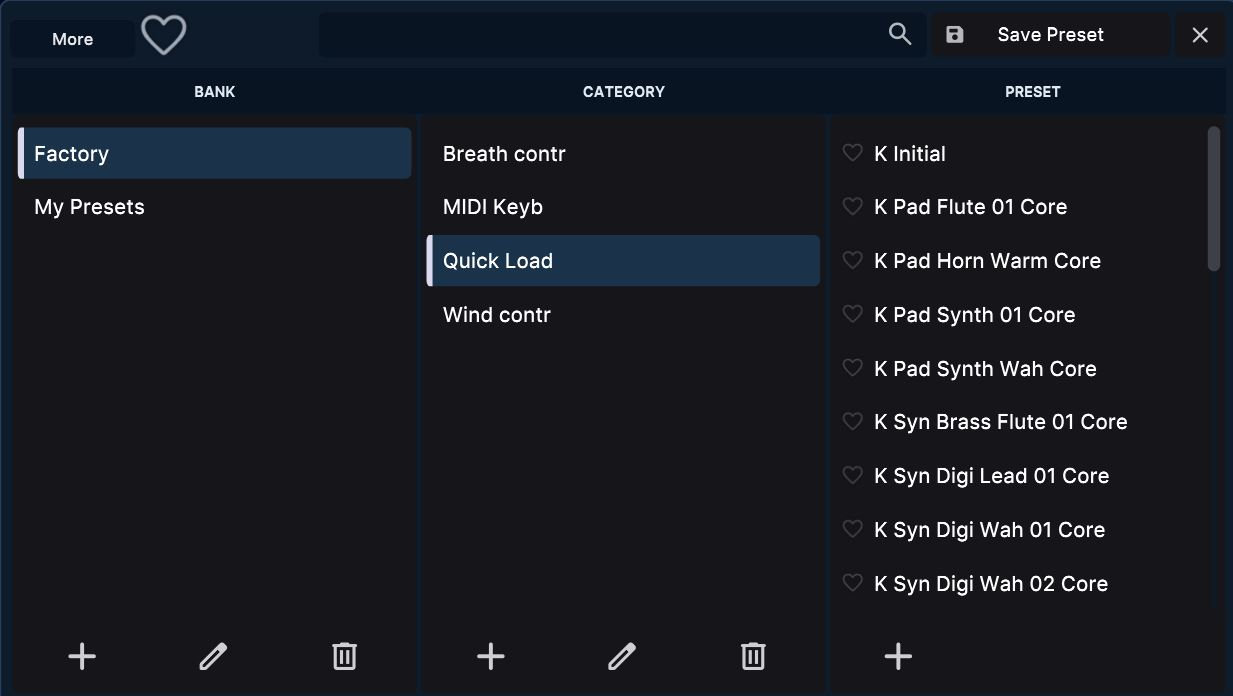
Preset Browser
Long attacks, long releases, and a delay and reverb of their own for each section.
Normally the instrument follows your breath closely. The attack is short, the sound falls the moment you stop blowing, and the release of the envelope is barely audible because breath has already closed the sound. That is what makes it behave like a wind instrument.
Pad/Scape suspends that. The attack can be stretched to three seconds, the release likewise, and the sound carries on long after the breath has gone. What comes out is not a wind instrument any more: it is a sustained bed, a texture, a landscape. Real players cannot do this, and no amount of technique gets you there, which is exactly why the mode exists.
It works per section. One section can hold a slow chord while another is played live and normally on top of it, and each has its own delay and reverb, so the two do not share a space.
The Pad/Scape button on the main panel opens the panel. The small indicator beside it lights whenever anything inside the panel is switched on, so you can tell at a glance that a section is in pad mode or that a delay is running, without opening it. The small button in the top left corner of the panel closes it again.
Inside there are three identical columns, one for each instrument section, laid out in the same order as the sections on the main panel.
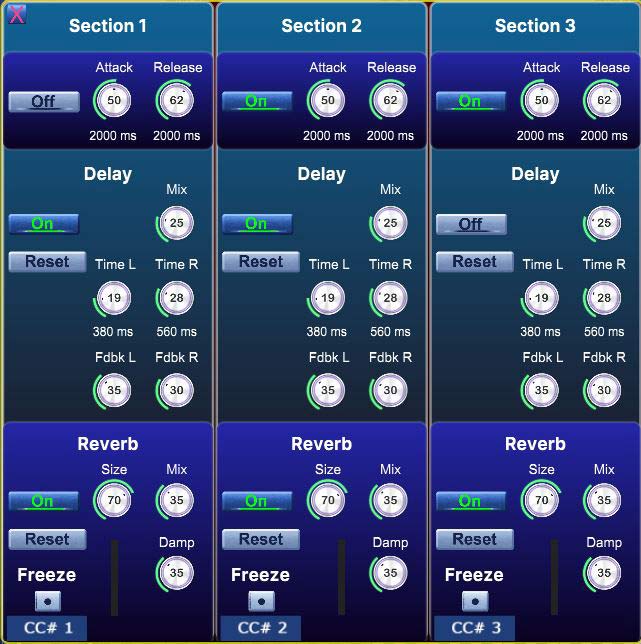
| Pad | Switches this section into pad mode. Attack and release then come from the two knobs below instead of from how hard you play. Switching it off returns the section to normal behaviour, including whatever state the main Attack button is in. |
| Attack | Rise time, up to three seconds. The value in milliseconds is shown under the knob. Long attacks also make the breath response slower, which is what keeps a slow swell from sounding artificial. |
| Release | Fall time after the note ends, up to three seconds, shown under the knob. |
| On/off | Switches the delay of this section. |
| Reset | Returns all delay controls to their default values. |
| Mix | Balance between the dry sound and the repeats. |
| Time L / Time R | Repeat time for the left and right channel separately, shown in milliseconds under each knob. Setting them apart is what turns a delay into a wide, moving space rather than an echo. |
| Fdbk L / Fdbk R | How much of each repeat is fed back in. High values on one side only produce patterns that drift across the stereo field. |
| On/off | Switches the reverb of this section. |
| Reset | Returns all reverb controls to their default values. |
| Size | Size of the space. |
| Mix | Balance between the dry sound and the reverb. |
| Damp | How quickly the high frequencies disappear from the tail. Higher values give a darker, softer space. |
| Freeze CC | Chooses the MIDI controller number that works Freeze. There is no button to press: freezing is done from your controller while both hands are busy, which is the only way it is of any use on stage. |
| Activity strip | The narrow strip beside the selector lights as messages with that number arrive. If it stays dark, your controller is sending something else and the number needs changing. |
| Freeze lamp | Lights while the tail is held. Freeze engages as soon as the value of the chosen controller reaches 64, and lets go when it falls below again, so a footswitch, a lever or a bite sensor all work the same way. |
Freeze is per section, and that is the point of it. Hold a chord in the first section, press whatever you assigned the freeze controller to, and it stays there while you play a live line in the second section over the top. The held tail does not fade, does not use voices, and does not care what you play next. Give each section its own controller number and you can build and drop layers one at a time without ever looking at the screen.
A second window that paints while you play.
The Visual button opens a window in Chrome that draws from your playing. Breath moves the brush, notes set the pitch and position, and any controller you like can be assigned to the picture. It is meant to be shown: put it on a projector or a second screen and it becomes part of the performance rather than a screensaver.
It runs as a separate program on purpose. Graphics are heavy, and keeping them out of the instrument means that however busy the picture gets, it cannot interfere with the sound.
The Visual button is the red one at the right edge of the expression panel. One press opens the picture in a window of its own. Everything the visual layer can do, every effect and every control in it, is described in the visual manual.
Video: The picture’s effects in two minutes
Press Visual. The first time you do this you need an internet connection, because the window loads from our site. After that it keeps its own copy and opens without a connection, so it works on stage where there is no usable network.
Chrome is required. Other browsers either do not support MIDI at all or support it partially, and without MIDI the window cannot hear your controller.
The picture opens in a Chrome window of its own, separate from your ordinary Chrome. Your bookmarks and extensions are not there, and nothing done in it touches your ordinary browser. MIDI is already allowed in it, so Chrome does not ask.
Its settings and your picture presets live in their own folder: %LOCALAPPDATA%\VGTrumpet\WindscapeVisualProfile on Windows, ~/Library/VGTrumpet/WindscapeVisualProfile on a Mac. Leave that folder alone: deleting it deletes the presets, and the next start needs the internet again. To move presets to another computer, use the save to file button in the Presets panel of the picture.
Everything is adjusted in the column on the left. Two buttons sit at the top of it. Detach panel moves the whole column into a window of its own, so the picture can go full screen on a projector while the controls stay on your laptop. Reload restarts the window, which is the cure for most of the small problems below.
Press the question mark key for the list of keyboard shortcuts. H hides the panel, F goes full screen, and the number keys recall saved looks.
A set of pictures comes with the window and loads by itself. To paint with your own, point the picture library at a folder on your computer, or put a picture straight into one of the twenty background slots. A preset keeps its own copies of your pictures, so it comes back complete after a restart, even if the folder has been moved or deleted since. Save to file in the Presets panel carries those pictures too, which is how complete presets move to another computer.
The instrument and the visual window both want to hear the same controller. Whether that is a problem depends entirely on which system you are on, so find yourself in the list below and ignore the rest.
| macOS Windows 11 (24H2 or newer) | Nothing to do. The system lets both programs listen to the same controller at once. Open them in any order and both will see it. |
| Windows 10 Windows 11 (before 24H2) | On these systems a MIDI port belongs to whichever program opened it first, so the two have to be connected through a virtual port. See the two ways of doing that below. |
Install loopMIDI (free) and create one port in it. In the visual window, connect your controller as the input and set MIDI Thru to that port. In VG Windscape, open the MIDI settings and enable only that port, leaving your controller unticked.
Video: Windows 10: sound and picture on one controller
Your controller now reaches the instrument through the visual window, and the order in which you start things stops mattering.
Install loopMIDI and create two ports, then install MIDI-OX (also free). Let MIDI-OX take the controller and route it to both ports, one for VG Windscape and one for the visual window.
Now the browser is out of the sound path completely: it can be closed, restarted or crash, and the instrument carries on. MIDI-OX looks dated and its routing window takes ten minutes to understand, but it is set up once and then forgotten.
If you perform, the tidiest arrangement of all is a plugin host such as Gig Performer. The host takes the controller and feeds both the instrument and the visual window, with no virtual ports and no extra utilities, and it gives you instant switching between sound worlds as a bonus. It is paid software, and for anyone playing on stage it is worth it.
Utility controls and display options.
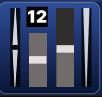
The number above the pitch bend indicator sets the range in semitones (1–12). Set it to 2 for standard keyboard use, or up to 12 for wide EWI-style bends.

Immediately stops all sound playback and clears any stuck notes. Use it if a note gets stuck during performance.

Adjusts the interface size: 0.75 (smaller), 1 (default), 1.25 (larger). Choose the zoom level that best fits your screen and workflow.
Step-by-step setup for Windows and macOS.
Videos: Order, download and find your files · Install on Windows · Install on Mac
Step 1 — Run the installer
Extract the installer archive and run VG Windscape_1.2.0 Setup.exe. Check "Create a desktop shortcut" and complete the installation. The sample folder will be created at C:\Program Files\VG Sound Collection\
Step 2 — Add sound files (VG Windscape + Complete Collection only)
Extract all sound library archives from your download and place all .vg5 files directly into C:\Program Files\VG Sound Collection\ — do not create subfolders.
Step 3 — Initial setup (required once)
Launch the standalone application by double-clicking the VG Windscape desktop icon. When prompted "Choose Sample Folder", select C:\Program Files\VG Sound Collection\ — then close and reopen the application. If instruments load correctly, installation is complete.
Step 1 — Run the installer
Extract the installer archive and run VG Windscape Installer.pkg. Follow the installation prompts. The sample folder will be created at Macintosh HD/Library/Audio/VG Sound Collection/
Step 2 — Add sound files (VG Windscape + Complete Collection only)
Extract all sound library archives from your download and place all .vg5 files directly into Macintosh HD/Library/Audio/VG Sound Collection/ — do not create subfolders.
Step 3 — Initial setup (required once)
Open the Applications folder and double-click VG Windscape. When prompted "Choose Sample Folder", select Macintosh HD/Library/Audio/VG Sound Collection/ — then close and reopen the application. If instruments load correctly, installation is complete.
Minimum requirements for running VG Windscape on Windows and macOS.
| Operating System | Windows 10 or later (64-bit) · macOS 11 (Big Sur) or later |
| RAM | 8 GB minimum |
| CPU | Modern multi-core processor recommended |
| Audio Interface | ASIO-compatible (Windows) or Core Audio (macOS) |
| Plugin Formats | VST, VST3, AU (64-bit) · Standalone application |
For the Visual window
| Browser | Google Chrome. Other browsers do not support MIDI in the way the visual window needs. |
| Graphics | Any card with WebGL support, which means anything made in the last ten years. A discrete card gives a smoother picture at large screen sizes. |
| Internet | Needed once, the first time you open the window. After that it works offline. |
| MIDI | On macOS and on Windows 11 24H2 or newer, nothing extra. On Windows 10 and earlier Windows 11, a free virtual port utility is needed; see the Visual section. |
Download Size
| VG Windscape | To be added before release |
Common issues and solutions.
With the Visual button this should not happen: the picture opens in a Chrome window of its own, where MIDI is already allowed. If Chrome ever refuses there, the fix takes a minute and keeps your presets.
Close the picture. Open the folder %LOCALAPPDATA%\VGTrumpet\WindscapeVisualProfile\Default on Windows (paste it into the address bar of File Explorer) or ~/Library/VGTrumpet/WindscapeVisualProfile/Default on a Mac (Finder, Go menu, Go to Folder). Delete the file called Preferences, only that one: the folder holds others with similar names. Press Visual again, and the instrument writes the file back with MIDI allowed.
The demo runs in your ordinary browser, and there the MIDI panel shows its own instructions. The visual manual has the details.
Almost always this is the instrument holding the controller. On Windows 10 and on Windows 11 before 24H2, a MIDI port belongs to whichever program opened it first.
Open the MIDI settings of VG Windscape and untick your controller there, then press Reload at the top of the visual panel. The controller will appear in the list. To have both at once, set up a virtual port as described in the Visual section.
If you play the instrument as a plugin, the DAW holds the controller instead, and the controller may show up in the visual window only under MIDI Thru. Do not choose it there. The visual manual, chapter Connecting, Windows 10, describes the arrangement through a DAW: the DAW passes the playing on to a loopMIDI port, and the picture listens to that port.
Also check the obvious: the visual window does not look for MIDI until you press the connect button in its panel.
This is the simple Windows 10 arrangement working as designed: your controller reaches the instrument through the visual window, so closing it cuts the path.
If that is a problem, and on stage it is, use MIDI-OX or a plugin host instead, both described in the Visual section. Either one keeps the browser out of the path of the sound.
Check the release of that section in the Pad/Scape panel, and remember that the number of voices is limited. A long release during a fast passage runs out of voices and older notes are taken away to make room.
Shorten the release and lengthen the tail with the delay and reverb of that section instead. They continue after the note has been released and cost no voices.
This usually means the sample path is not configured correctly. Close the application, then manually set the sample path in the LinkWindows (Windows) or LinkOSX (Mac) file located in your user's Application Support folder.
Install ASIO4ALL from asio4all.org. In VG Windscape audio settings, select ASIO4ALL first, then switch back to your native ASIO driver.
ASIO4ALL keeps the sound card to itself while VG Windscape uses it. Other programs cannot play through that card in the meantime, so the browser stays silent, and with it the backing track in the Visual window. Nothing is broken: this is how ASIO4ALL gets its low latency. The backing track player inside VG Windscape is not affected, because it plays through the instrument.
There are four ways around it. Choose the first one that fits your setup.
1. Give the browser another output. If your computer has a second sound device (built-in speakers or headphone socket next to an audio interface, monitor speakers over HDMI, a USB headset), open Windows Settings › System › Sound › App volume and device preferences and set the output of Chrome to that device. The instrument keeps the card it uses with ASIO4ALL, and the browser plays through the other one.
2. Use the native ASIO driver of your audio interface. If your interface comes with an ASIO driver of its own, choose it under Settings › Audio › Audio Device instead of ASIO4ALL. These drivers usually let other programs play at the same time, and they give the lowest latency as well.
3. Use Windows Audio in the instrument. Under Settings › Audio › Driver, choose Windows Audio or Windows Audio (Low Latency Mode). Everything plays together, at the cost of a little more latency. Avoid Exclusive Mode here: it holds the card in the same way as ASIO4ALL.
4. Mix both with VoiceMeeter. VoiceMeeter (free, from vb-audio.com) is a virtual mixer: the instrument and the browser both play into it, and it sends the mix to your card. It takes a few minutes to set up and suits anyone who also streams or records the whole performance.
If you upgraded and used a custom sample location, new samples install to the default folder while old samples remain in your custom folder. Move all new .vg5 files to your custom sample folder and restart.
Always use realtime export (realtime bounce) when rendering your MIDI track. This prevents timing errors that can occur with offline bouncing.
Windows: Delete the folder C:\Users\[username]\AppData\Roaming\VG Trumpet\VG Windscape\
macOS: Delete the folder ~/Library/Application Support/VG Trumpet/VG Windscape/
Then run the installer again.